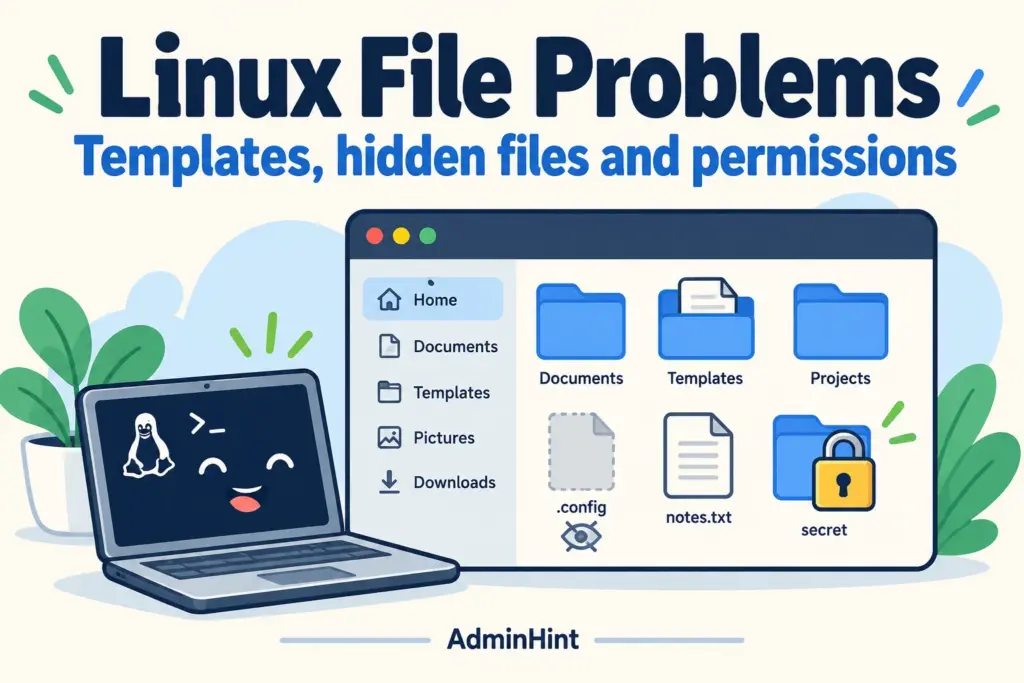

Guide context: Published 13 October 2026. The situation below is an illustrative troubleshooting scenario, not a report of an AdminHint client incident. Banner artwork is illustrative.
A routine file task can suddenly become confusing: the New Document option is missing, a configuration folder seems to have vanished, or a directory opens but refuses a new file. These symptoms have different causes. Solving them together with a broad permission change is likely to create a new problem.
The graphical steps below target GNOME Files, also called Nautilus. Other Linux file managers can offer similar features under different names. Confirm which application you are using before looking for an identical menu.
Start with the symptom
| Problem | First check | Useful result |
|---|---|---|
| No New Document option | Look for a usable template in your Templates folder | A template appears in the document menu |
| A dot-prefixed folder is missing | Toggle Show Hidden Files | The existing folder becomes visible |
| Cannot create or edit a file | Inspect ownership, permissions, and destination type | You identify the exact restriction |
Restore a missing document template
Open a text editor and create an empty document. Save it as Blank Text.txt in the Templates folder in your home directory. If you already have a file with that name, use a different name rather than overwriting it. On localized desktops, use the folder presented by the file manager; its name on disk may not be the English word.
Return to a writable folder, right-click its empty space, and look for New Document. Select your template and give the new file a useful name. The GNOME template guide explains this mechanism: the menu creates a document from a saved template, which can contain reusable content or be blank.
If the menu still does not appear, check that you are actually using GNOME Files and that the template is in the configured Templates directory. Creating another random directory named Templates may not help if your desktop points elsewhere.
Reveal a file that starts with a dot
In GNOME Files, press Ctrl + H, or select Show Hidden Files from its menu. A folder such as .config is normally hidden from the default view; it has not disappeared because you cannot see it.
According to GNOME’s hidden-file documentation, names beginning with a dot are hidden this way. Visibility is not access control. A file can be hidden and still readable, or visible and inaccessible.
Do not rename an application’s configuration directory just to make it easier to find. The app may depend on the existing path and behave as if its settings were lost. Toggle the view instead, make only the intended edit, and restore the normal view when finished if you prefer it.
Inspect a folder you cannot write to
Right-click the file or folder, open Properties, and inspect Permissions. Check the owner, your group access, and the permission on the containing folder. The GNOME permissions guide distinguishes access to a folder’s contents from permission to create and delete files there.
For a terminal check, replace this example with the exact folder you are investigating:
ls -ld -- "$HOME/Documents"
id
A file may be writable while its parent directory does not allow creating a replacement. A removable drive may be mounted read-only. A remote share may enforce server-side permissions. Those are different situations, and changing local mode bits does not solve all of them.
Make a narrow fix only when you understand it
For a folder you own and intend to keep private, you can grant yourself the necessary access through its Properties dialog. Avoid changing all enclosed files unless you know that every one should share the same permissions. Group or shared folders deserve particular care because other people may depend on their current access.
Do not use chmod -R 777 on your home directory or a website as a general repair. It grants broad access and can damage a carefully designed permission structure. If the owner is unexpectedly root, investigate the command or process that created the item before changing it.
On a work machine or hosting account, stop at the evidence and involve the administrator if you are not authorized to modify ownership or access. Record the exact path, intended action, and error message; that is more useful than “Linux will not let me save.”
Verify with a harmless file
Create a uniquely named test document in the destination, save one sentence, close it, and reopen it. If that works, retry the original task. Remove the test through the file manager’s normal Trash flow when you no longer need it.
When only one application still fails, investigate its sandbox permissions, file format, or remote-location support. The successful test tells you the folder accepts an ordinary write; it does not prove every app has the same access.
Topic inspiration: How-To Geek’s Linux file-management discussion. This guide uses a separate symptom-driven checklist and the GNOME project’s instructions.